Muhammad Afan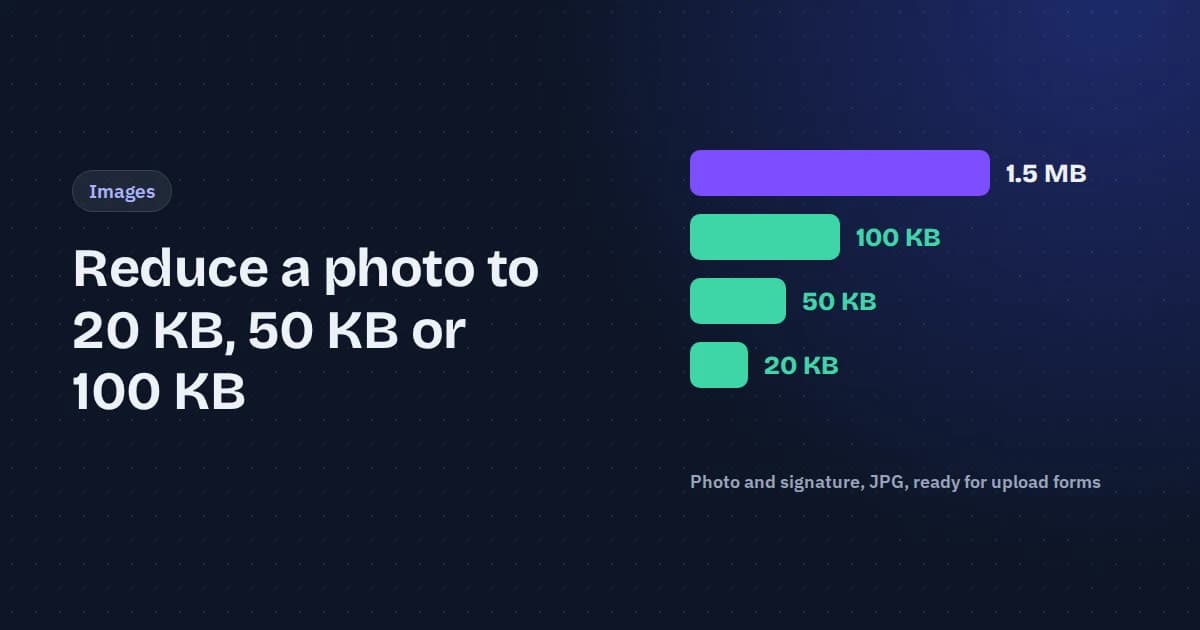
Key takeaways
- A 20 KB limit doesn't mean a tiny photo. Our 1.48 MB portrait came out at 501 × 752 pixels in under 20 KB, which is plenty for an ID photo.
- Plain backgrounds compress far better. At the same 20 KB, the portrait on a grey backdrop kept three times as many pixels as a detailed garden photo.
- Crop a signature before you compress it. Squeezing the whole page into 20 KB left the signature 93 pixels wide; cropping first kept it 601 pixels wide.
- Forms disagree on what a KB is. Some count 1,000 bytes, others 1,024. A file under 20,000 bytes passes a 20 KB limit either way.
Job portals, exam boards, visa sites and bank forms often cap uploads at a tiny size: a photo under 50 KB, a signature under 20 KB. A photo from a phone is usually 2 to 5 MB, a hundred times too big. Shrinking it is easy, but doing it badly gives you a blurry face, an unreadable signature or an upload that still gets rejected.
We ran three real photos through the compressor to see what you actually get at each size, and which mistakes cause rejections.
Read the form's rules first
Before you compress anything, find the photo instructions on the form and note three things:
- The size limit in KB. Watch for a minimum as well as a maximum, such as "between 20 KB and 50 KB". Some portals reject files that are too small.
- The dimensions, in pixels or centimetres, if the form gives any.
- The format. Almost every form accepts JPG (also written JPEG). Many accept nothing else, so a PNG, WebP or an iPhone HEIC photo may be refused even when it's small enough.
If the form only gives a KB limit, you have more freedom: the compressor picks the largest dimensions that fit.
The 1,000 vs 1,024 byte trap
"20 KB" can mean 20,000 bytes or 20,480 bytes, depending on who wrote the form. A file of 20,300 bytes passes one check and fails the other, which is why an upload can be rejected even though your computer says the file is "20 KB".
Tip: Aim under the stricter number. Our compressor treats 1 KB as 1,000 bytes, so a 20 KB result is always under 20,000 bytes and passes both kinds of check.
Our test
We used three photos from Unsplash, chosen to match what people actually upload:
- A portrait: a head-and-shoulders photo on a plain grey backdrop, 3008 × 4512 pixels, 1.48 MB.
- A detailed photo: a family and a dog on grass in front of trees, 4096 × 2731 pixels, 1.39 MB. Grass and leaves are the hardest thing to compress.
- A signature: a photo of a page with handwritten signatures and a pen, 7500 × 5005 pixels, 4.86 MB.
Each went through the compress to 20 KB, 50 KB, 100 KB and 200 KB pages with the default settings, in Chrome on a 2016 laptop.
1.48 MB → 19.99 KB
Portrait for a 20 KB form, still 501 × 752 px
1–3 seconds
Per photo, after the first one
93 → 601 px
Signature width at 20 KB, before and after cropping
| Size limit | Portrait kept | Detailed photo kept |
|---|---|---|
| 20 KB | 501 × 752 px, 19,988 bytes | 417 × 278 px, 19,884 bytes |
| 50 KB | 793 × 1189 px, 49,663 bytes | 660 × 440 px, 49,551 bytes |
| 100 KB | 1121 × 1682 px, 98,969 bytes | 1098 × 733 px, 99,079 bytes |
| 200 KB | 1586 × 2379 px, 197,327 bytes | 1827 × 1218 px, 199,851 bytes |
Every file passed the strict check
All eight results stayed under the limit counted in thousands of bytes, so none would be rejected by a form that counts 1 KB as 1,000 bytes. Each one landed within 1.5% of the limit, so you keep almost all the quality the form allows.
Plain backgrounds keep far more detail
- Portrait on a plain backdrop377
- Detailed garden photo116
Same 20 KB limit; the plain background leaves more of the file for the face.
A JPG spends its bytes on detail. A plain wall costs almost nothing, so the face gets the space; grass, leaves and patterned clothes eat it up. For ID and passport photos, a plain light background is both what most forms ask for and what compresses best.
The compressor shrinks before it blurs
Quality settings stayed between 51 and 67 out of 100. Below about 50, JPG starts showing blocky artefacts, so the tool reduces the dimensions a little instead of crushing the quality. The first photo took about 8 seconds because the page was loading its image tools; after that, each photo took 1 to 2 seconds, and about 3 seconds for the 37-megapixel signature photo.
How to reduce a photo to 20, 50 or 100 KB
- Open the page for your limit: 20 KB, 50 KB or 100 KB. For any other limit, use the image compressor in Target size mode and type the number.
- If the form asks for exact proportions, such as a 35 × 45 mm passport photo, set them first with the passport photo resizer or the image cropper.
- Drop your photo onto the page. JPG, PNG, WebP and iPhone HEIC photos all work, and the result is always saved as JPG.
- Check the size and dimensions shown under the result, then download it.
- Upload it to the form. If it's refused, see the fixes below.
The photo is processed in your browser and never uploaded to us, which matters when the photo is for an ID card, a visa or a bank.
How to compress a signature to 20 KB
Signatures go wrong more often than photos, because people photograph the whole page.
- Sign on plain white paper with a dark pen, and photograph it in daylight from directly above, so there are no shadows.
- Open the image cropper, choose Free, and drag the box tightly around the signature. Leave only a small white margin.
- Compress the cropped image to the form's signature limit, for example on the 20 KB page.
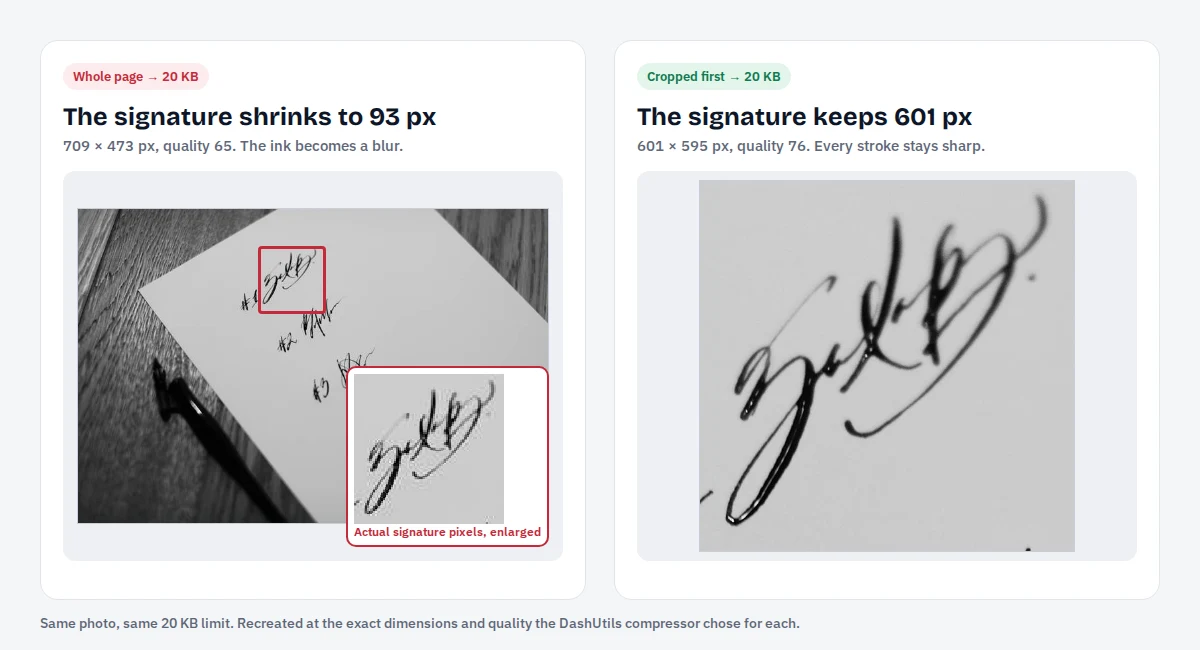
Compressed whole, our signature page came out at 709 × 473 pixels, and the signature itself was just 93 pixels across: a smudge. Cropped first, the same 20 KB held a 601 × 595 pixel image of the signature alone, at a higher quality setting (76 instead of 65).
When the form rejects your file
"File size exceeds the limit"
The form probably counts 1 KB as 1,000 bytes and your file was made for 1,024. Compress again with our tool, which stays under 1,000-byte KB, or set the target a few KB below the limit.
"File size is too small"
The form has a minimum. Use the maximum the form allows as your target: the compressor fills as much of the limit as it can, so the result lands just under it rather than far below.
"Invalid file format"
The form wants JPG. Photos from iPhones are HEIC, and screenshots are often PNG. The compress-to-KB pages always save JPG, or you can convert first with HEIC to JPG.
"Invalid dimensions"
The form wants exact pixel sizes. Resize to those dimensions with the image resizer first, then compress.
Frequently asked questions
Can I reduce a photo to 20 KB on my phone?
Yes. The compressor works in the browser on Android and iPhone, so there is no app to install. Open the 20 KB page, tap to choose a photo from your gallery, and download the result.
Will compressing to 20 KB make my photo blurry?
Not noticeably for an ID photo on a plain background. Our portrait kept 501 × 752 pixels at 20 KB, more than the 413 × 531 pixels a 35 × 45 mm passport photo needs at 300 DPI. Busy backgrounds lose more detail, so photograph yourself against a plain wall if you can.
Why does my computer say 20 KB but the form says the file is too big?
Your computer and the form may count kilobytes differently: 1,024 bytes or 1,000. A file made with our compressor is under the stricter 1,000-byte count, so it passes both.
What size should my signature image be?
Follow the form if it gives dimensions. If it only gives a KB limit, crop tightly around the signature first. In our test a cropped signature fit into 20 KB at about 600 pixels wide, sharp enough to read every stroke.
Is it safe to upload my ID photo to a compressor?
With most online compressors your photo goes to their server. This one runs in your browser, so the photo and signature never leave your device. That's worth checking before you send an identity document anywhere.